How to Connect to a PostgreSQL Database: A Practical Guide
Learn how to connect to postgresql database using psql, GUI tools like TableOne, and application code across local, remote, and cloud environments.
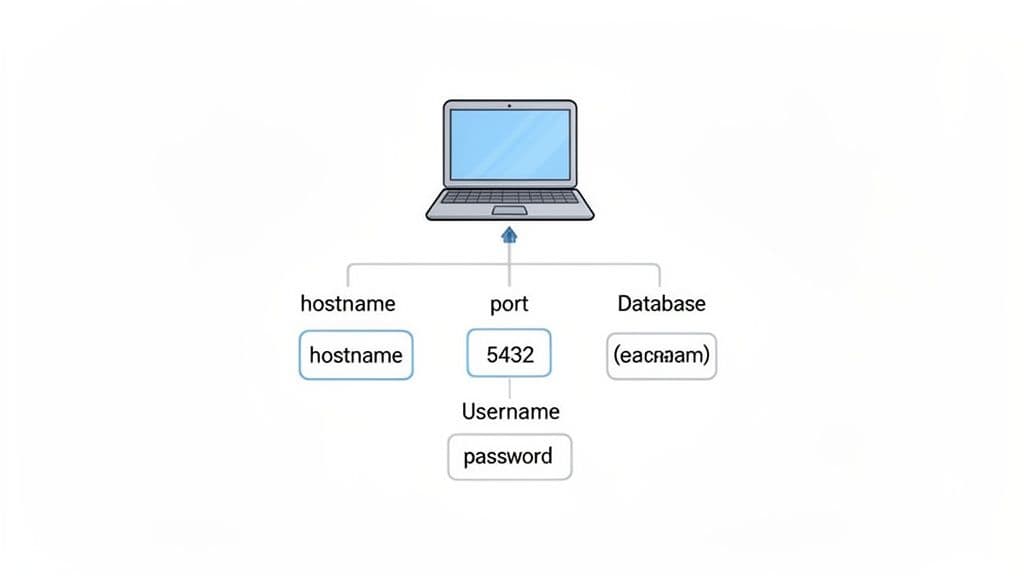
Connecting to a PostgreSQL database really just boils down to five key details: the hostname, port, database name, username, and password.
This simple set of credentials is your universal key, whether the database is running on your local machine, a remote server, or managed by a cloud provider. Getting these fundamentals right is the first and most important step to connecting with any tool, from the command-line to a modern GUI.
Your First PostgreSQL Connection Explained
Figuring out how to connect to a PostgreSQL database is a rite of passage for any developer. It's a skill that has only grown more critical over time. Back in 2023, PostgreSQL cemented its place as the most-used database among developers, with a massive 55.6% usage rate. For professionals, that number climbs to 58.2%, making it the most used, desired, and loved database for three years running.
The good news is that the core concept is pretty straightforward. Every connection, no matter the tool or application, needs the same essential pieces of information to find the server, authenticate you, and get you into the right database.
The Five Core Connection Parameters
At the heart of every connection are five critical parameters. I like to think of them as the address and security code needed to access a specific vault of data. You'll need to have these handy for any client, library, or app you use.
- Hostname: This is the server's address, either an IP (
127.0.0.1) or a domain name (db.example.com). For local development, you'll almost always uselocalhost. - Port: The specific "door" the PostgreSQL server is listening on for connections. The default is 5432, and it rarely changes unless a system administrator has a specific reason.
- Database Name: The name of the specific database you want to work with on the server. A single PostgreSQL server can host multiple databases.
- Username: The user account that has permission to access that database.
- Password: The password tied to that username, used for authentication.
This diagram shows how these pieces fit together, moving from locating the host, to authenticating your credentials, and finally to accessing the database itself.
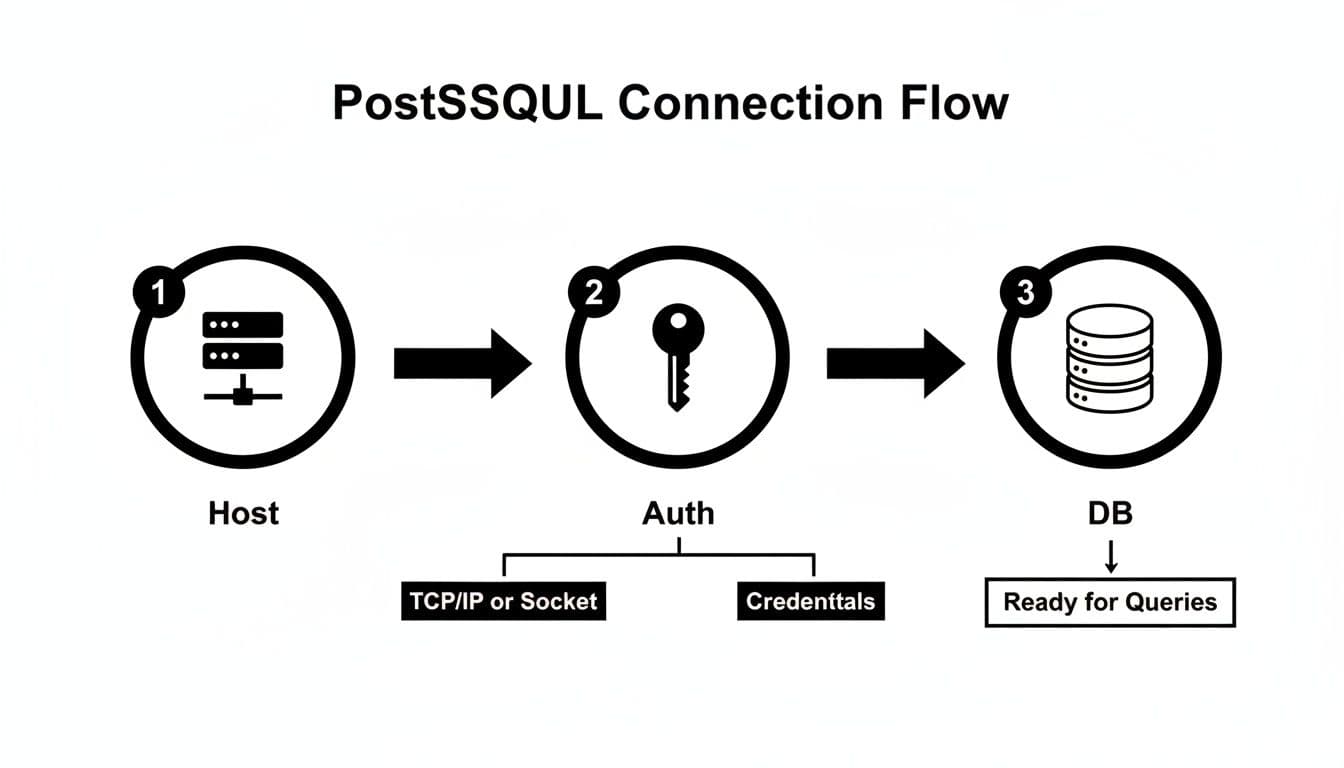
As you can see, a successful connection is a sequence of successful steps. If any one of them fails—like a typo in the password—the whole process stops. This is where a good database GUI can be a lifesaver, as it helps you manage and store these connection details correctly. If you're looking for a tool to simplify this, you might find a modern client like TableOne useful, which you can download for free.
PostgreSQL Connection Parameters at a Glance
To make this even clearer, here’s a quick summary of how these connection parameters look in different real-world scenarios. Notice how the core five pieces of information are always present, just with different values depending on where the database is hosted.
| Parameter | Localhost Example | Remote Server Example | Cloud Provider (Supabase/Neon) Example |
|---|---|---|---|
Hostname (host) | localhost or 127.0.0.1 | db.your-company.com or 192.168.1.100 | aws-0-us-east-1.pooler.supabase.com or ep-plain-snow-123456.us-east-2.aws.neon.tech |
Port (port) | 5432 (default) | 5432 (or a custom port if changed for security) | 5432 or 6543 (often specified in the provider's dashboard) |
Database Name (dbname) | my_local_db | production_db | postgres (often the default name) |
Username (user) | postgres or your local username | app_user | postgres or a generated user like postgres.abunchofchars |
Password (password) | The password you set during local installation | A strong, secure password for the remote user | A randomly generated, strong password from the provider's console |
Getting these five parameters right is 90% of the battle. Whether you're using a simple command-line tool or a complex application, these details form the foundation of every single connection you'll ever make to a PostgreSQL database.
Connecting with Command-Line and GUI Tools
Once you've got your connection details handy, you have a choice to make: go with a classic command-line tool or a more visual graphical interface.
For many developers, nothing beats the speed and raw power of psql, the native command-line interface for PostgreSQL. It’s scriptable, fast, and included with every single PostgreSQL installation, making it the go-to for quick queries, admin tasks, and direct server interaction right from the terminal.
Getting Connected with psql in the Terminal
Connecting with psql is a matter of stringing together a few flags with your credentials. This method gives you direct, unfiltered access to your database server.
Here’s a practical, real-world example of connecting to a remote database:
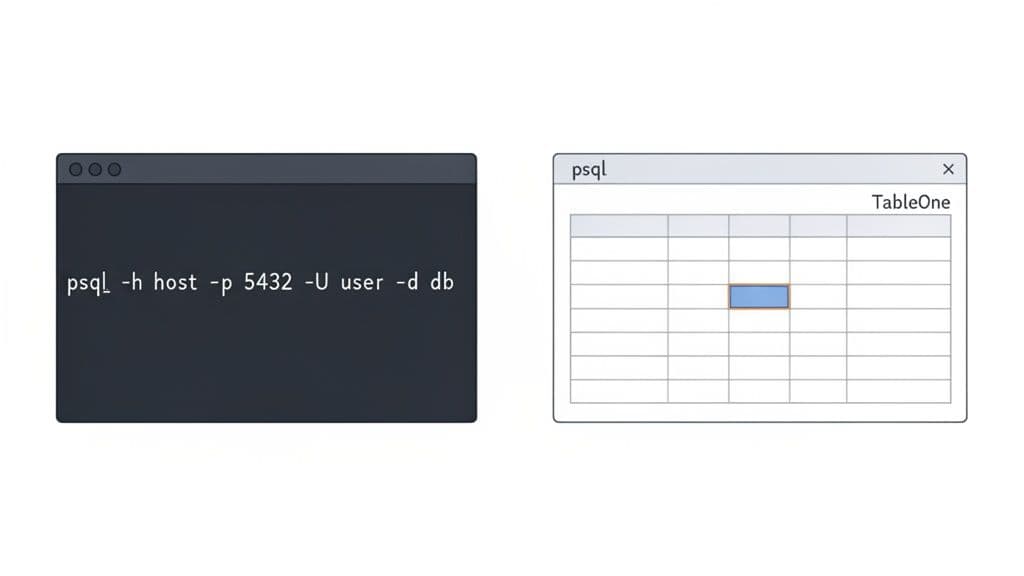
psql -h db.your-company.com -p 5432 -U app_user -d production_db
Let's quickly unpack that command:
-h(hostname): Points to your server's address. Actionable Tip: If you're connecting to a database on your own machine, you can omit this, and it will default tolocalhost.-p(port): The port your database is listening on. The default for PostgreSQL is 5432, so you can often skip this flag unless using a custom port.-U(username): The database user you're connecting with.-d(database name): The specific database you want to work in.
Hit enter, and psql will ask for the password for the app_user. Type it in (you won't see characters appear, which is normal for security), and you'll be dropped right into the database prompt (production_db=>), ready to run SQL.
A More Visual Approach: Using a GUI Client
While the command line is undeniably efficient, sometimes you just want to see your data. That's where a Graphical User Interface (GUI) client comes in. Modern tools like TableOne are designed to make database interaction feel intuitive and fast, which is a lifesaver when you're browsing tables, making quick edits, or managing your schema without having to write every single command.
The connection process in a GUI is built on the exact same principles, just presented in a more user-friendly form. You’ll typically select PostgreSQL from a list of database types and then plug your credentials into a connection form.
This is what that looks like in TableOne—you can see how each field lines up perfectly with the command-line flags.
There’s no guesswork here. The "Host" field is your -h flag, "Port" is -p, and so on. It's the same information, just in a different package.
After connecting, you get a clean, spreadsheet-like view of your tables. This makes exploring data, editing rows on the fly, and filtering results as easy as a few clicks. It's especially handy for common but tedious tasks; for instance, our guide on how to import a CSV into PostgreSQL shows just how much a GUI can streamline that process.
The real win with a good GUI client is efficiency. It turns complex database operations into simple clicks and saves a ton of time for developers who constantly jump between writing code and managing data.
At the end of the day, whether you choose psql or a GUI is all about your workflow and what you need to get done. Both are excellent ways to connect to a PostgreSQL database; they just serve different needs.
Connecting from Your Application Code
While using a GUI or psql is great for poking around and running one-off queries, the real magic happens when your application starts talking to the database directly. This is how you build dynamic websites, power APIs, and run data-heavy backend services. To do this, you’ll need a library or "driver" specific to your programming language that knows how to speak PostgreSQL's language.
Let's walk through some real-world examples for the most common languages. The goal here is to give you solid, copy-and-paste-ready code that you can adapt for your own projects.
Before we dive in, here's a crucial piece of advice: never, ever hardcode your database credentials in your source code. I’ve seen this mistake lead to massive security breaches. Actionable Insight: Always use environment variables to store sensitive info like passwords, hosts, and usernames. This keeps your secrets out of version control (like Git) and makes it simple to switch between development, staging, and production environments.
Python with psycopg2
If you're a Python developer, psycopg2 is your best friend. It’s the battle-tested, go-to PostgreSQL adapter for just about everything, from Django web apps to data science scripts with Pandas. It's fast, stable, and reliable.
Here’s a practical example of connecting, running a query, and safely closing the connection:
import psycopg2
import os # To read environment variables

conn = None # Initialize conn to None
try:
    # Build the connection string from environment variables
    # Example .env file:
    # PG_DBNAME=mydatabase
    # PG_USER=myuser
    # PG_PASSWORD=supersecret
    # PG_HOST=localhost
    # PG_PORT=5432
    conn = psycopg2.connect(
        dbname=os.environ.get("PG_DBNAME"),
        user=os.environ.get("PG_USER"),
        password=os.environ.get("PG_PASSWORD"),
        host=os.environ.get("PG_HOST"),
        port=os.environ.get("PG_PORT")
    )

    # A 'cursor' lets you execute SQL commands
    with conn.cursor() as cur:
        cur.execute("SELECT version();")
        db_version = cur.fetchone()
        print(f"Successfully connected to: {db_version[0]}")

finally:
    # This block always runs, ensuring the connection is closed.
    if conn is not None:
        conn.close()
        print("Database connection closed.")
That try...finally block is non-negotiable. It guarantees that the connection closes even if your query throws an error, preventing resource leaks that can exhaust your server's connection limit.
Node.js with node-postgres (pg)
For the JavaScript crowd, node-postgres (usually just called pg) is the standard. It’s designed to fit right into the modern Node.js ecosystem, with great support for promises and async/await.
A critical, actionable insight for web applications is to use a connection pool. A pool manages a set of open connections, reusing them across requests instead of creating new ones each time, which is far more efficient.
Here’s a practical example of setting up and using a pool:
const { Pool } = require('pg');

// The pool will automatically read standard PG environment variables
// (PGUSER, PGHOST, PGDATABASE, PGPASSWORD, PGPORT)
const pool = new Pool();

async function getPostgresVersion() {
  let client; // Declare client outside try block
  try {
    client = await pool.connect(); // 'check out' a client from the pool
    const res = await client.query('SELECT version()');
    console.log('Connected to:', res.rows[0].version);
  } catch (err) {
    console.error('Error executing query', err.stack);
  } finally {
    // IMPORTANT: Release the client back to the pool
    if (client) {
      client.release();
    }
  }
}

getPostgresVersion();
Pro Tip: See that
client.release()? That's the most important part. It doesn't close the connection; it returns the client to the pool so another request can use it. If you usedclient.end(), you'd be closing the connection for good, defeating the whole purpose of the pool.
Java with JDBC
In the Java world, you'll be using the Java Database Connectivity (JDBC) API. This is the standard interface for connecting to any database. To make it work with PostgreSQL, you need to add the official PostgreSQL JDBC driver as a dependency in your pom.xml (Maven) or build.gradle (Gradle) file.
The connection string is the key piece here, following the format jdbc:postgresql://host:port/database.
import java.sql.Connection;
import java.sql.DriverManager;
import java.sql.ResultSet;
import java.sql.Statement;
import java.sql.SQLException;

public class PostgresConnector {
    public static void main(String[] args) {
        // These should ideally come from a config file or environment variables!
        String url = "jdbc:postgresql://localhost:5432/mydatabase";
        String user = "myuser";
        String password = "mypassword";

        // A 'try-with-resources' block automatically closes the connection.
        try (Connection conn = DriverManager.getConnection(url, user, password)) {
            if (conn != null) {
                System.out.println("Connected to the PostgreSQL server successfully!");
                try (Statement stmt = conn.createStatement()) {
                    ResultSet rs = stmt.executeQuery("SELECT version();");
                    if (rs.next()) {
                        System.out.println("Database version: " + rs.getString(1));
                    }
                }
            } else {
                System.out.println("Failed to make connection.");
            }
        } catch (SQLException e) {
            System.err.println("Connection Error: " + e.getMessage());
            e.printStackTrace();
        }
    }
}
This code uses a try-with-resources statement, a modern Java feature that automatically handles closing the Connection for you. Actionable Insight: This is the preferred, modern way to handle JDBC connections as it's cleaner and safer than a manual finally block, preventing resource leaks.
Mastering Connection Strings and Security
Once you get comfortable connecting with individual parameters, you'll want a more efficient way to manage your credentials. That's where the connection string (or URI) comes in. It’s a single, compact line of text that bundles everything needed to connect, making it the universal key for nearly every tool and driver that talks to a PostgreSQL database.
The standard format is pretty intuitive:
postgresql://user:password@host:port/dbname?options
See how that maps to the separate pieces of information? A practical example for a local development database might look like this:
postgresql://dev_user:S3curePass!@localhost:5432/project_db
This single-line approach is a lifesaver, especially when you start using environment variables to configure your applications. Instead of juggling five different variables, you can just manage one: DATABASE_URL. It’s cleaner and way less error-prone.
Securing Data in Transit with SSL
A basic connection gets you in, but it leaves your data exposed as it travels over the network. Without encryption, all communication between your application and the database is in plain text, which is a major security risk. This is why SSL/TLS encryption is an absolute must-have for any production system.
You can easily enable it by adding the sslmode parameter to your connection string. This one little addition makes a huge difference.
sslmode=require: This is your baseline for security. It forces the connection to be encrypted, stopping anyone from casually listening in on the network traffic. It doesn't, however, verify that you're talking to the correct server.sslmode=verify-full: This is the gold standard. It encrypts the connection and confirms the server’s certificate is valid and matches the hostname you expect. This is what protects you from sophisticated "man-in-the-middle" attacks.
For example, a secure connection string to a production database would look like this:
postgresql://app_user:ProdP@ssw0rd@db.your-company.com:5432/production_db?sslmode=require
Actionable Insight: If the database isn't running on your own laptop, you should always use at least
sslmode=require. It's a simple, non-negotiable step to prevent data breaches that happen from sniffing unencrypted network traffic.
Choosing the Right Authentication Method
Security isn’t just about the network; it's also about how PostgreSQL checks a user's password. This is all handled in a critical server configuration file called pg_hba.conf, which defines the rules for who can connect from where and with what method.
When it comes to password-based authentication, you'll typically see two methods: md5 and scram-sha-256. For a long time, md5 was the default, but it’s now considered outdated. scram-sha-256 is the modern, recommended standard because it offers much stronger protection against password-cracking attacks. Actionable Tip: When setting up a new server, always configure it to use scram-sha-256.
Getting this right matters. As of 2026, a verified 39,062 companies worldwide depend on PostgreSQL, including giants like Microsoft. And for good reason—managed Postgres can slash infrastructure costs by 58% and boost performance by 65% compared to self-hosted setups. You can see more stats on PostgreSQL's widespread adoption for yourself. All this to say, mastering secure connection practices is a fundamental skill that directly impacts your application's resilience and your own productivity.
Connecting to Cloud and Managed Databases
Let's be honest, the days of manually setting up and babysitting your own database server are quickly becoming a thing of the past for most of us. Modern cloud platforms like Supabase, Neon, and Vercel Postgres have completely changed the game. You can now spin up a powerful, serverless PostgreSQL instance in a matter of minutes, and they handle all the tedious stuff—scaling, backups, and maintenance—so you can actually focus on building your app.
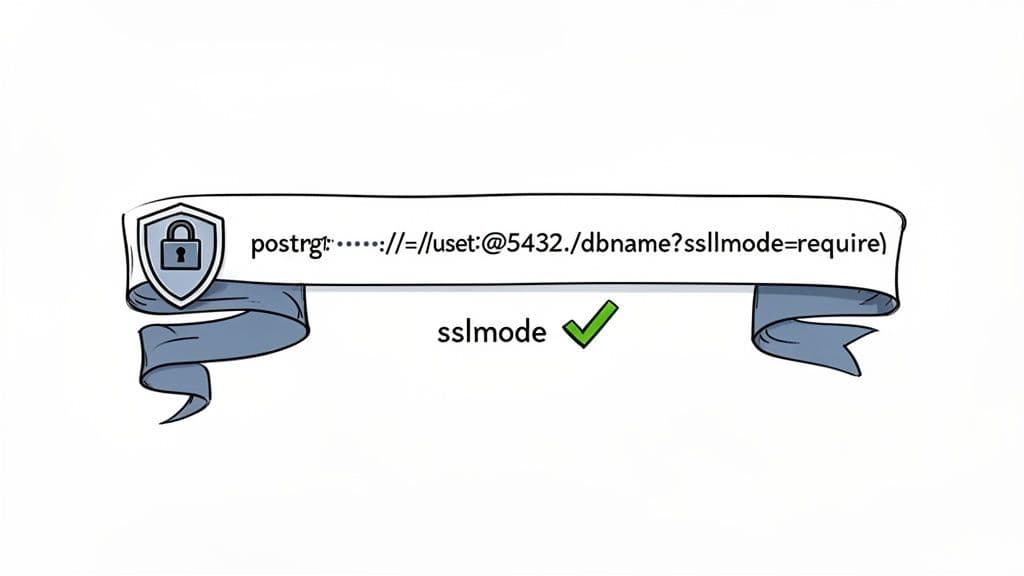
The best part? Connecting to one of these managed databases is often easier than a local setup. Instead of piecing together individual parameters, these providers hand you a ready-made connection string (or URI) that has everything you need baked right in. You’ll typically find this right in your project's dashboard, usually under a "Database" or "Connection Settings" section.
Finding and Using Your Cloud Connection String
Once you've got your hands on that connection string, putting it to use is dead simple. Whether you're plugging it into a GUI client like TableOne or setting up an environment variable for your application (like DATABASE_URL), it’s just a copy-and-paste job.
Here’s a practical rundown of what you’ll likely see on your provider's dashboard:
- Connection URI: The standard
postgresql://...string. It's the one-size-fits-all solution for most applications and database tools. - Pooled Connection String: Many serverless providers offer this, and you should absolutely use it if you can. It intelligently manages connections for you, preventing your database from getting slammed with too many simultaneous requests.
psqlCommand: A pre-formatted command, flags and all, ready for you to paste directly into your terminal for a quick connection.
This move toward managed services is no accident. PostgreSQL's momentum in the enterprise world is undeniable, with 35% of global enterprises now trusting it for their most important workloads. This is fueling a massive industry boom, with the enterprise database market expected to skyrocket from $46.09 billion in 2025 to $322.6 billion by 2035. As you can imagine, this growth creates a skills gap, making intuitive GUIs crucial for working with cloud instances. You can read more about PostgreSQL's strong global adoption and its industry-wide impact.
Navigating Cloud-Specific Nuances
While managed platforms make life a lot easier, there are a few real-world gotchas you should be aware of. These are the small details that can easily trip you up if you’re not looking out for them.
- IP Whitelisting: For security, many platforms will only accept connections from trusted IP addresses. If your connection keeps timing out, the first place you should check is the "allow list" or "network access" settings in your project dashboard to make sure your current IP address is on it.
- SSL is Mandatory: Unlike a local dev setup where SSL might be optional, cloud databases almost always require an encrypted connection. Your connection string will usually include
?sslmode=requireby default—don't be tempted to remove it. - Read Replicas: If your plan includes read replicas (which are great for scaling), you'll get a separate connection string for them. Actionable Insight: Use that specific replica string for any analytics queries, reporting tools, or dashboards to take the load off your primary database and keep your main application fast.
Here's a tip from experience: always use the provider's connection pooler string if it’s available. It solves an entire class of headaches related to connection limits, especially in serverless functions, and it's key to keeping your app fast and reliable as it scales.
Dealing With Common Connection Headaches
Sooner or later, every developer hits a connection error. It's a rite of passage. Even with the right credentials, something can go wrong, leaving you staring at a cryptic error message. But don't worry, these issues usually come down to just a few common culprits.
Figuring out where to look is half the battle. Once you know the typical failure points, you can solve these problems in minutes instead of hours.
The most famous of all is the Connection refused error. This is PostgreSQL’s polite way of saying it heard you knock, but no one's home. In my experience, this almost always points to one of two things.
First, check if the database server is actually running. It sounds obvious, but it's the simplest thing to forget. Before you dive into network diagnostics, just confirm the service is active. On most Linux systems, a quick sudo systemctl status postgresql will give you an immediate answer.
If the server is running, it might not be listening for connections from your machine. Actionable Tip: Check the postgresql.conf file for the listen_addresses setting. If it's set to 'localhost', the server will only accept connections from itself. To allow remote connections, you need to set it to '*' (to listen on all available IP addresses) or a specific IP address.
Sorting Out Authentication and Firewall Blocks
Another classic error you'll see is FATAL: password authentication failed for user "your_user". Your first instinct is to check for a typo in the password—and you should—but the real problem is often deeper. If you're sure the password is correct, your next stop is the pg_hba.conf file.
Think of this file as the database's bouncer. It has a strict list of rules for who gets in, from where, and how they have to prove their identity. Each line in pg_hba.conf defines a connection type, database, user, IP address range, and the required authentication method. Practical Example: A common misconfiguration is trying to connect from a remote IP (e.g., 192.168.1.100) when the pg_hba.conf only allows connections from 127.0.0.1/32 (localhost).
Finally, never underestimate the firewall. It's designed to block unwanted traffic, and sometimes your legitimate connection attempt gets caught in the net.
- On the Server: Is the server's own firewall (like
ufwon Ubuntu or Windows Defender) blocking port 5432? You'll need an explicit rule to allow incoming traffic on that port. Forufw, the command is simple:sudo ufw allow 5432/tcp. - On the Network: In a cloud setup (AWS, GCP, etc.) or a corporate network, there's likely another layer of security. Check the network firewall or security group rules to make sure your IP address is allowed to connect.
Here's my go-to troubleshooting process: I always start with the dumb stuff. Is the server on? Am I using the right port and host? Only after I've ticked those boxes do I start digging into
pg_hba.confor firewall settings. This simple "start easy" habit has saved me from countless rabbit holes over the years.
By working through these checks—server status, authentication rules, and firewalls—you'll be able to squash the vast majority of PostgreSQL connection problems you run into.
Frequently Asked Questions
We've walked through the ins and outs of connecting to PostgreSQL, from the command line to your application's code. Still, a few questions always seem to pop up. Here are the answers to some of the most common ones I hear.
What Is the Default Port for a PostgreSQL Database Connection?
PostgreSQL almost always lives on port 5432. This is the standard, default port you'll see everywhere.
While you can technically change this in the postgresql.conf file, it's rarely done. If you're struggling to connect, the very first thing to check is that traffic is allowed on port 5432, especially if there's a firewall in the way.
How Do I Find My Connection String on a Cloud Provider?
Most modern cloud database providers, like Supabase or Neon, make this super easy. Just log into your project's dashboard, and you'll almost always find a "Database" or "Connection Info" section.
They usually give you several formats right out of the box: a standard connection URI, a ready-to-paste psql command, and sometimes even code snippets for different languages.
Pro Tip: If your provider offers a pooled connection string, use it. Pooled connections are a lifesaver in serverless environments, as they prevent your app from quickly maxing out the database's available connection slots.
Can I Connect to a PostgreSQL Database Without a Password?
You can, but you probably shouldn't outside of your own local machine. PostgreSQL's authentication is controlled by a powerful configuration file called pg_hba.conf.
Inside this file, you can set authentication methods like trust or peer for specific users or local UNIX socket connections. These methods essentially tell Postgres, "I trust this user implicitly, no password needed." This is great for local development scripts, but it's a major security risk for any connection coming over a network.
Choosing the right database and understanding its security model is crucial. For example, knowing the key differences between PostgreSQL and MySQL can really shape how you approach everything from architecture to connection security.
Ready to manage your PostgreSQL connections with a tool that's fast, simple, and predictable? TableOne offers a clean, cross-platform GUI that connects to PostgreSQL, MySQL, SQLite, and popular cloud providers in a snap. Get your one-time license and start your free trial today. https://tableone.dev